
Time tracking built into your projects
Start the timer from the issue you're working on. The hours go to the right project and issue, so reports and invoices don't depend on anyone remembering later.
Prefer your own server? See self-hosted plans
How does time tracking work in Eigenfocus?
Eigenfocus has time tracking built in.
- Start a timer from any issue or add time manually with a date, duration and note.
- Entries are tied to the project and issue, can be marked billable and show up in a daily timesheet.
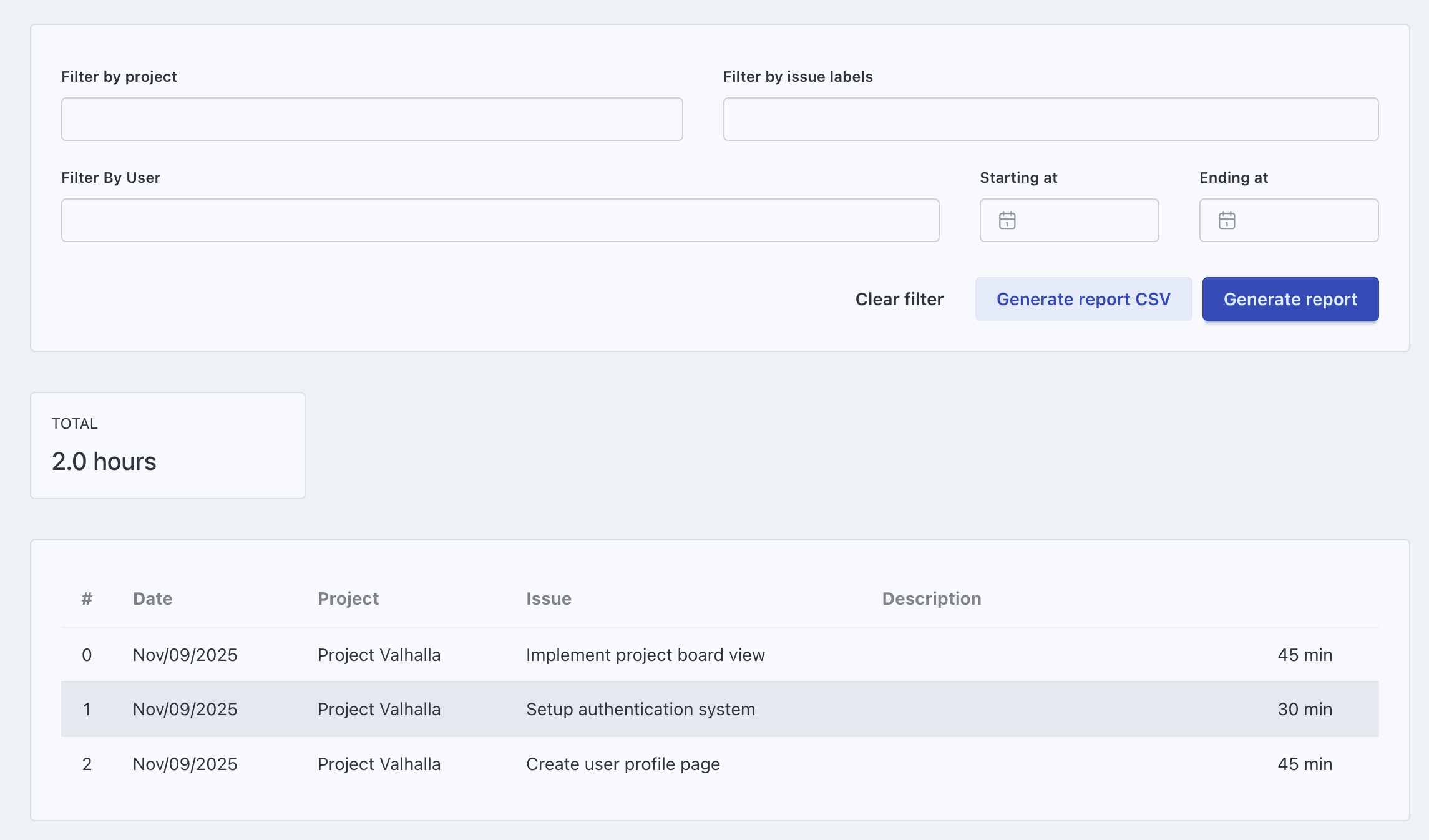
- Admins and super managers export reports filtered by project, person, label, date range and billable status to CSV.
Hours belong next to the work
Hours in one app, tasks in another
Someone ends up matching them every week. In Eigenfocus the hours are logged on the issue itself.
Timers that never got started
Add the entry afterwards with a date and duration. You can also fix a timer's total while it runs.
Reports that take an afternoon
Filter by project, person and date and export to CSV in a few clicks.
How it works
Start a timer from any issue
One click on the issue starts the clock. The running timer stays visible in the menu while you move around the app. Stop it and the time is logged to that issue and project.
- One click to start and stop
- Stopping a timer logs the time to that issue
Fix broken signup form
A timesheet for each day
Move through the days, add entries you missed and check your week before reports go out. Edit a running entry's note or total if you started late.
- Manual entries with date, duration and note
- Edit a timer while it runs
-
Client portal
Review homepage mockups
1:30 -
Client portal
Call with the marketing team
0:45 -
Internal
Update the onboarding checklist
0:50 -
Mobile app
Fix login redirect
2:10
Mark what's billable
Each entry can be billable, not billable or left open. Projects set the default, so client work starts billable and internal work doesn't.
- Billable default per project
- Filter reports by billable status
-
Client portal
Review homepage mockups
Billable 1:30 -
Client portal
Call with the marketing team
Billable 0:45 -
Internal
Update the onboarding checklist
Not billable 0:50 -
Mobile app
Fix login redirect
Billable 2:10
Reports and CSV export
Admins and super managers filter time by project, person, label, date range and billable status, then export to CSV for invoicing or payroll.
- Filter by a release or area label to see where its hours went
- CSV with date, person, project, issue, type, note, labels, billable status and minutes
How teams use time tracking
Agencies
Billable by default on client projects and a CSV per client at the end of the month.
Agency project managementConsultants
A timer on each engagement's tasks and manual entries for calls and travel.
Consultant project managementFreelancers
One timer per issue and a weekly check before sending the invoice.
Freelancer time trackingProduct teams
Filter the report by a release label to see where its hours went.
Software developmentAlso included
Focus Space
A distraction-free screen with your task, the running timer and ambient sounds.
Private by default
People see their own entries. Admins and super managers see everyone's in reports.
From your AI tool
Start or stop timers and log time through the MCP server or REST API.
Frequently asked questions
Can I track time without starting a timer?
Can I edit a timer that is running?
Who can see my time entries?
Can I export time for invoicing?
Do I need a separate time tracking tool?
Can I turn time tracking off for a project?
Try it with your own projects
Flat price for your whole team. Cloud from $15/month or self-hosted.
Prefer your own server? See self-hosted plans