

Custom fields for project management: track what matters without the complexity
Every project has data that doesn't fit into status, assignee, or labels. Maybe it's a priority level, an effort estimate, a project phase, or a milestone name. You need to track it, and you need it visible, not buried in a description field.
Custom fields in project management are user-defined data points you add to tasks or issues beyond the defaults. They let you capture information specific to your workflow (effort estimates, project phases, feature areas, priority levels) in a structured, filterable way. Instead of free-text workarounds, you get proper fields that show up on cards, work in filters, and stay consistent across issues.
TL;DR: custom fields without complexity means adding structured data to your issues in seconds, per project, with no global configuration. Track project metadata like priorities, effort, phases, and client names directly on your cards.
Most project management tools either ignore this need or make it painful. Jira has custom fields, but they come with global field schemes, admin overhead, and a configuration maze that grows with every project. Trello includes custom fields in its paid plans.
What custom fields solve in project management
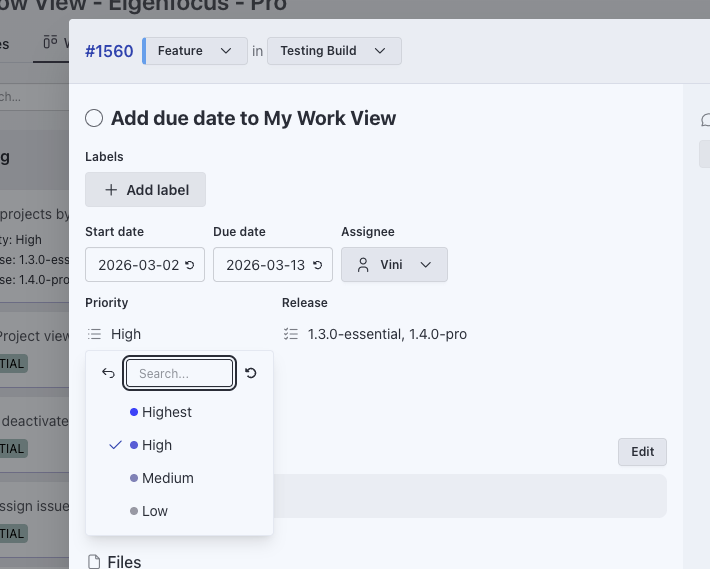
Custom fields let you add structured data to your issues. Instead of writing "Priority: High" in a description, you create a "Priority" field with predefined options. That field shows up as a colored badge on your cards, is filterable in views, and stays consistent across issues.
The key difference in Eigenfocus: fields are per-project. You define what matters for each project independently. No global schemes, no admin permissions, no configuration that bleeds across teams.
How teams use custom fields to track what matters
Agencies: structured client work
When you manage multiple client projects, each one has its own needs. One client cares about deliverable phases (Discovery, Design, Development, Review). Another tracks effort estimates (S, M, L, XL). With per-project custom fields, you set up exactly what each project needs. This is especially useful for agency project management where each client account has different workflows.
Useful fields for agencies:
- Deliverable status - Draft, In Review, Approved, Delivered
- Effort - Small, Medium, Large
- Priority - Low, Medium, High, Urgent
- Client contact - text field for the point person
Product teams: sprint and feature tracking
If you're building a product, you probably want to track which sprint an issue belongs to, what feature area it falls under, and its priority. In tools like Jira, setting this up means navigating field schemes and screen configurations. In Eigenfocus, you just add the fields to your project.
Useful fields for product teams:
- Sprint - Sprint 1, Sprint 2, Sprint 3...
- Feature area - Auth, Payments, Dashboard, API
- Priority - P0, P1, P2, P3
- Effort estimate - 1, 2, 3, 5, 8 (story points or t-shirt sizes)
Consulting teams: structured project metadata
When you run multiple consulting engagements, each with different phases and deliverables, custom fields help you track what stage each piece of work is in. Instead of maintaining a spreadsheet alongside your project board, you keep all metadata inside the tool. Fields like project phase and deadline status give you a quick read on where things stand without opening every issue.
Useful fields for consulting teams: - Project phase - Discovery, Execution, Wrap-up - Deadline status - On Track, At Risk, Overdue - Client name - text field to tag which client the work belongs to
Eigenfocus Pro includes custom fields, along with boards, grids, lists, and timeline views. See all features.
A simpler alternative to Jira custom fields
If you've used Jira's custom fields, you know the setup: global field schemes that apply across all projects, screen configurations that control where fields appear, and admin permissions to manage any of it. Every new field is a system-wide decision. For most teams, that's more process than the field is worth.
Other tools have their own tradeoffs. ClickUp offers custom fields with more flexibility, but the number of configuration options can feel like overkill when you just need a few fields. Notion lets you add properties to databases, but databases are isolated and don't behave like project management views.
Eigenfocus takes the opposite approach. Fields are per-project, created in seconds, with no admin layer. You open your project settings, define a field, and it shows up on your cards. For teams looking for project management customization without the complexity of traditional tools, this covers what you actually need.
| Feature | Eigenfocus | Jira | ClickUp | Trello |
|---|---|---|---|---|
| Custom fields | Per-project, no admin needed | Global field schemes, admin required | Per-space/folder, plan-dependent | Power-Up only (limited) |
| Field types | Many types: Text, number, date, URL, boolean, select, multi-select | Many types | Many types | Many types |
| Colored badges on cards | Yes | No (requires plugins) | Yes | No |
| Per-view field visibility | Yes | Screen configurations required | Yes | No |
| Per-user pricing | No (pay once) | Yes | Yes | Yes |
Project management customization without the complexity
Eigenfocus custom fields support several types:
- Text - free-form input for names, notes, or short descriptions
- Number - for effort estimates, story points, or quantities
- Date - for internal deadlines or target dates
- URL - for linking to external resources
- Boolean - yes/no toggles
- Single-select - pick one option from a defined list, with colored badges
- Multi-select - pick multiple options from a defined list
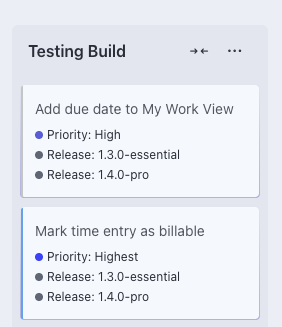
For select fields, you define options with colors. Those colors show up as badges directly on your cards, making it easy to scan a board and see priority levels or project phases at a glance.
You control which fields are visible in each view. So your board can show priority badges while your list view shows effort and sprint columns. Each view shows what's relevant to it.
See how custom fields work in Eigenfocus, from creating a field to seeing colored badges on your cards.
Common questions about custom fields in project management
What types of custom fields are useful for project management?
The most common types are single-select (for priorities, phases, statuses), text (for client names or notes), number (for effort estimates or story points), and date (for internal deadlines). Eigenfocus supports text, number, date, URL, boolean, single-select, and multi-select.
How are Eigenfocus custom fields different from Jira's?
Jira custom fields are global. They apply across all projects through field schemes and screen configurations. In Eigenfocus, custom fields are per-project. You create them directly in the project that needs them, with no admin overhead or global impact.
Can I control which custom fields appear in different views?
Yes. In Eigenfocus, you choose which fields are visible in each view independently. Your board might show priority badges while your list view shows effort and sprint columns. This keeps each view focused on what matters for that perspective.
Do custom fields work with filtering and search?
Yes. Custom field values are searchable in the list view, and select fields can be used for grouping in boards and grids. The data you add to fields is integrated into how you navigate and organize your work.
Get started with custom fields
Custom Fields are available in Eigenfocus Pro Edition. You can set them up in under a minute: open your project settings, define your fields, and they show up on your cards. No configuration wizard, no admin permissions.
You can also read about how teams use Eigenfocus for project management or as a Jira alternative.
Custom fields pair well with other views. Learn how to plan deliverables with a project timeline, or explore matrix views and swimlanes for organizing issues by custom field values.